
MediaGet Torrent Client for Smart TV
Smart torrent search, built-in media player, instant setup for easy downloads.
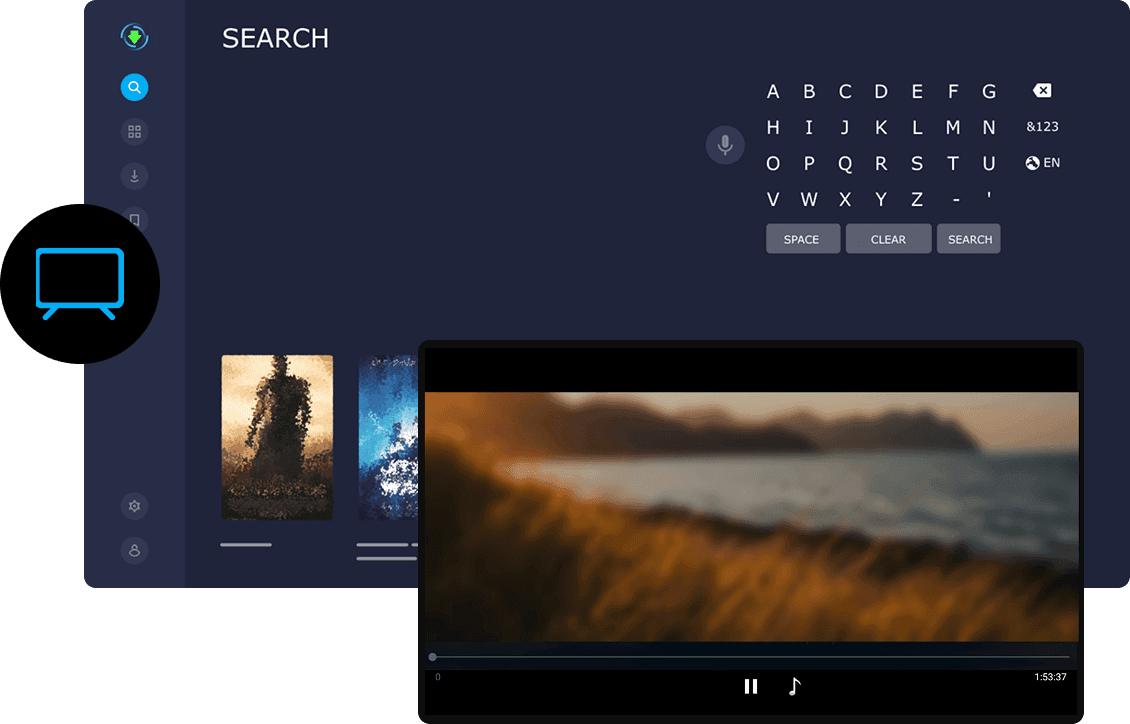
MediaGet torrent client for Smart TV is a convenient torrent downloader application that can be installed on smart televisions. If you have a modern TV running Android TV (such as Sony Bravia, Philips, TCL, or Xiaomi Mi TV), you'll find MediaGet in the Google Play Store for Android TV - a specially adapted application designed for remote control navigation. It can be installed directly through Google Play on your television.
The interface is simplified for large screens, but functionally it's the same client: you can download movies and series directly to your TV's internal storage or external drives. However, storing large files on televisions isn't always convenient due to limited memory, so many users prefer an alternative approach - streaming video to TV after downloading on PC or smartphone.
With MediaGet's powerful torrent search capabilities, you can easily access free HD movies direct download content with just a few clicks for offline viewing. It supports BitTorrent and P2P connections and provides easy access to any legally distributed content. Over the years on Google Play, this reliable link downloader has earned high ratings and achieved over 10 million installations, demonstrating its popularity among users seeking efficient torrent solutions.
Installing MediaGet on Smart TV via Google Play
- 01
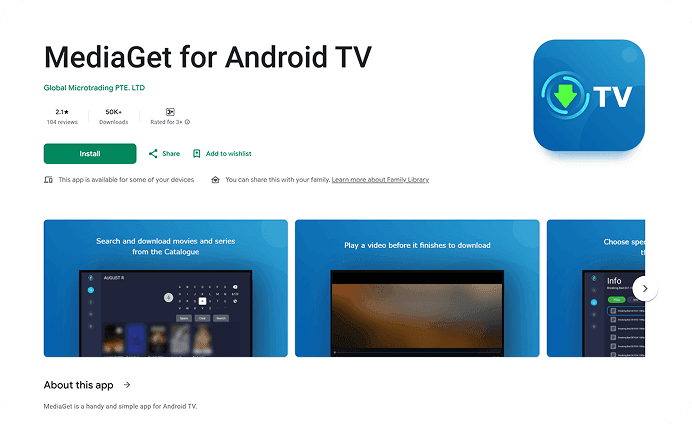
Open the Google Play Store app on your Smart TV and search for "MediaGet" in the search bar, or follow the direct link.
- 02
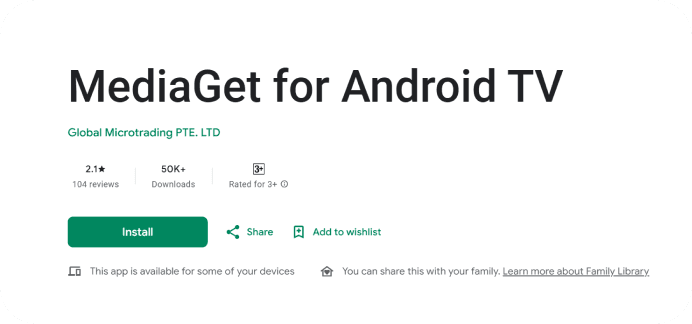
In the search results, you'll see the MediaGet icon. Click "Install."
- 03
The application will download and install automatically.
- 04
After installation, you can launch MediaGet directly from the Store (using the "Open" button) or through the new icon on your screen. During first launch, MediaGet may request permissions (such as device storage access for saving files).
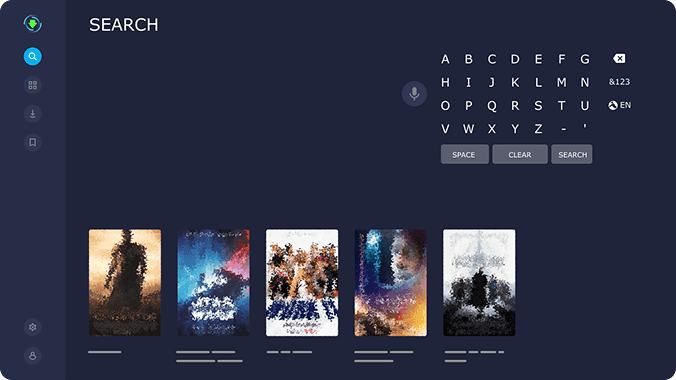
That's it.
You'll then see the main MediaGet screen where you can immediately begin downloading .torrent files to find movies, series, or music tracks.
If your Smart TV doesn't run Android (such as Samsung Tizen, LG webOS, etc.), direct MediaGet installation isn't possible - these platforms don't support third-party torrent clients. However, you can still use MediaGet with your television. The easiest method is downloading movies through MediaGet on your computer or laptop, then displaying them on TV. This can be done by connecting the TV as a monitor via HDMI or using Chromecast functionality.
Great news: MediaGet can stream video directly to your TV screen over the network without additional configuration. When your television is on the same Wi-Fi network, a "Watch on TV" button (or similar) appears next to downloaded videos in MediaGet. Simply click it - and playback begins on your television.
This versatile torrent client with magnet to torrent support transforms your TV into a "torrent cinema" even without direct installation. For example, movies found through MediaGet's search engine can immediately launch on your television for enjoyable viewing without waiting for complete downloads.